White label link building means your client never learns about LinkScope.
Your clients won’t see our name in an email, on an invoice, or in a report. They see your brand only.
Most agencies break this without knowing. They mistakenly forward a delivery notification or mention the platform name in a call. Previously, one let a client peek at the dashboard during a screen share.
That genuinely kills your margin. The second a client knows your source, they can price check. They can go directly.
Your 180 percent markup becomes a conversation you do not want to have.
True white label means invisibility. The client believes you have publisher relationships. They see your reporting and pay your price.
Let’s help you with setting up LinkScope so clients never know it exists. Account config. Email handling. Invoicing. Client scripts.
Step 1: Create Your Agency Account
Use your agency domain email when you register. Don’t go for Gmail. Also, not a personal address.
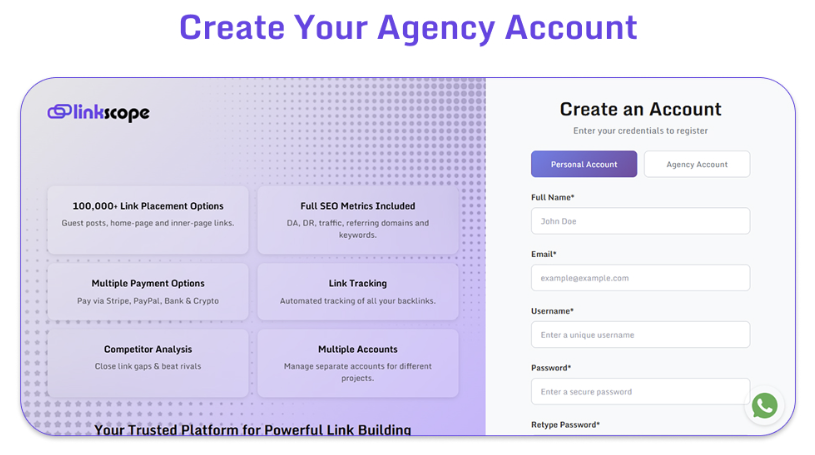
Use This Link: https://app.linkscope.io/register
If your agency is called X SEO, register with [email protected] or [email protected].
Your agency name in the account should match your actual branding. This also shows up in internal records.
Fill out the company profile completely. Address, phone, website. This matters if you ever need support or custom arrangements.
Step 2: Configure Email Notifications
LinkScope sends you order updates. The emails come from their system. You receive them. You never forward them to clients.
This works fine if you manually extract information and put it in your own reports.
Step 3: Account Settings
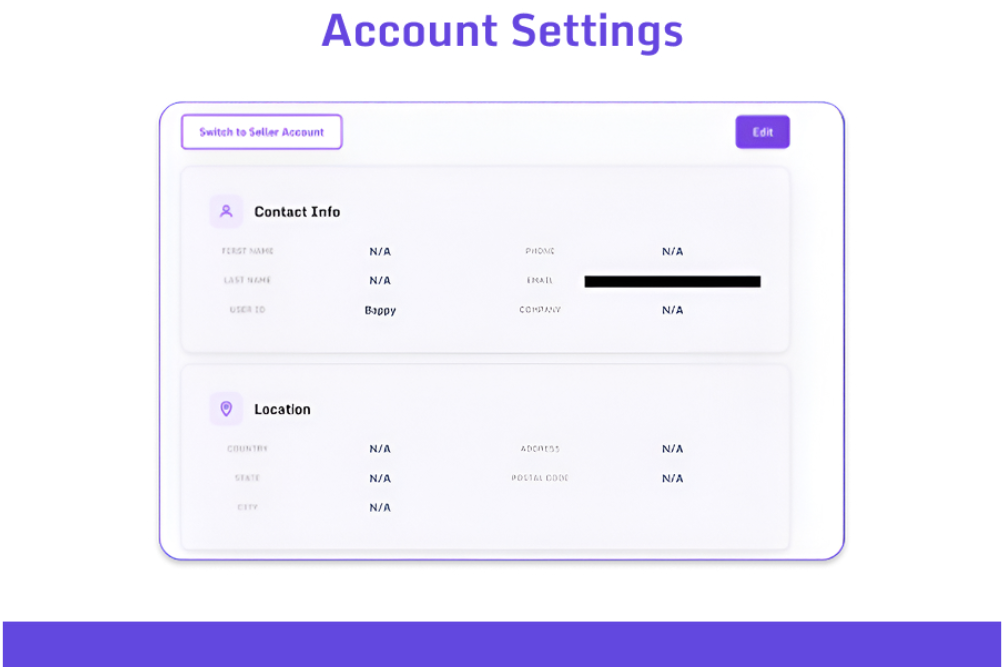
Set up your account with:
- ➜ Your name
- ➜ User ID
- ➜ Phone
- ➜ Company
What clients will see if they somehow intercept an email: your branding only. Nothing about LinkScope.
This takes fifteen minutes to configure. Do it before you place your first order.
Step 4: Order Management for Invisibility
Never Forward Linkscope Emails to Clients
LinkScope sends you delivery notifications. Do not forward them.
Open the email. Copy the live link URL. Paste it into your own tracking sheet. Close the email.
Then send your client a report from your template. Your logo. Your branding. No trace of where the link came from.
Forwarding is the fastest way to break white label. It takes one second of laziness, and your client sees the platform name.
Create Your Own Reporting Template
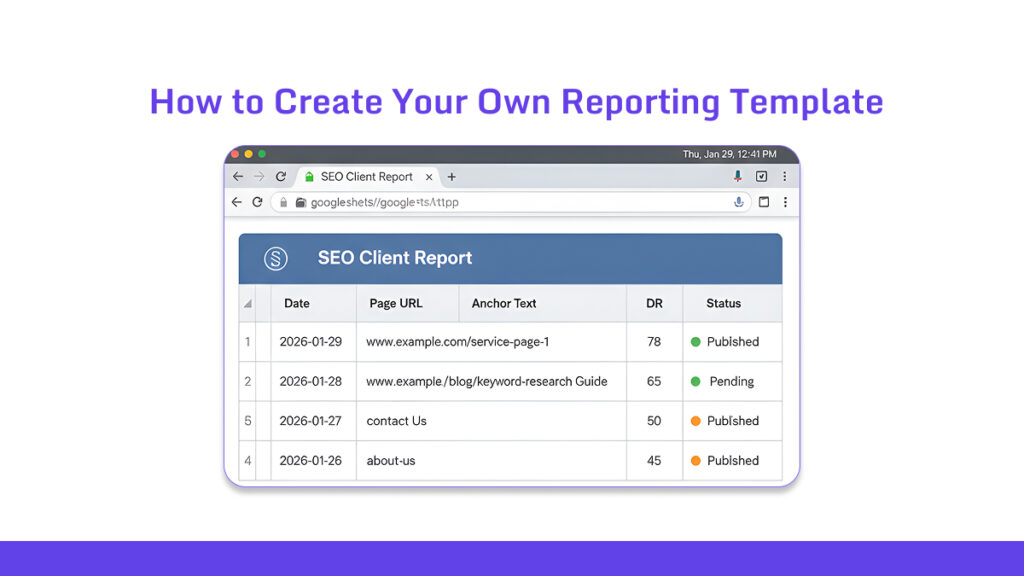
Build a simple Google Sheet or Excel file.
Columns you need: Date, Page URL, Anchor Text, DR, Status.
Add your agency logo at the top. Use your brand colors.
When a link goes live, add one row. Fill in the details. Send the sheet to your client as a PDF or share link.
This is what they see. Not LinkScope. Not a third-party dashboard. Your report.
Use Project and Client Labeling
LinkScope has a notes field on every order. Use it. Tag each order with the client’s name.
Example: “Acme Corp – March batch” or “Client: Peterson Law – DR50 links.”

This keeps your orders organized internally. You can filter. You can track and stay clean.
The client never sees these notes. They are for you only.
Step 5: Payment and Invoicing Setup
The money path is simple. Client pays you, you pay LinkScope, and keep your share. Don’t let a client pay LinkScope directly. The moment they see LinkScope on a credit card statement or invoice, your white label breaks.
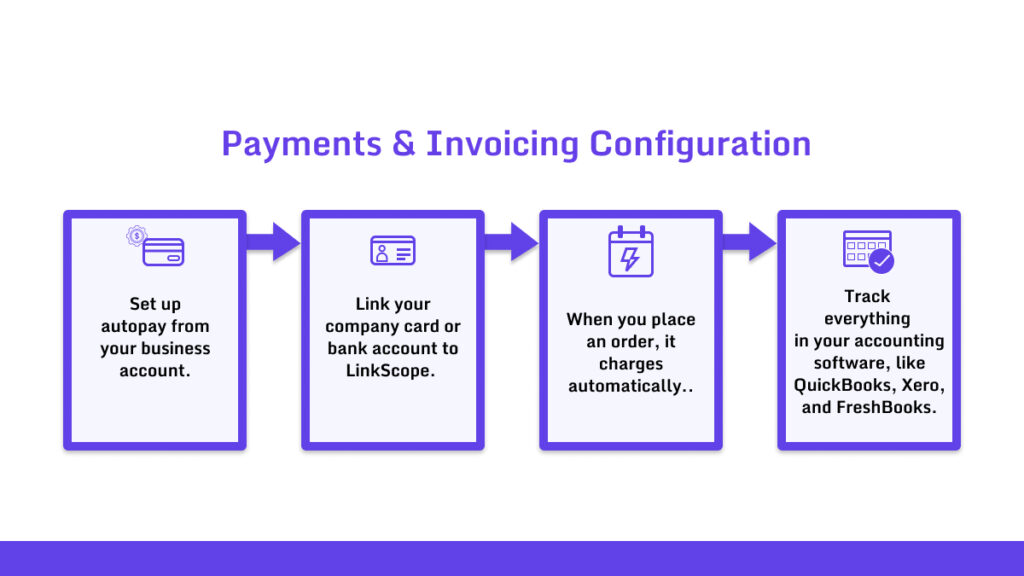
- ➜ Set up autopay from your business account.
- ➜ Link your company card or bank account to Linkscope.
- ➜ When you place an order, it charges automatically.
- ➜ Track everything in your accounting software, like QuickBooks, Xero, and FreshBooks.
Treat Linkscope like any other vendor. Monthly expense category. Clean books.
How to Invoice Clients?
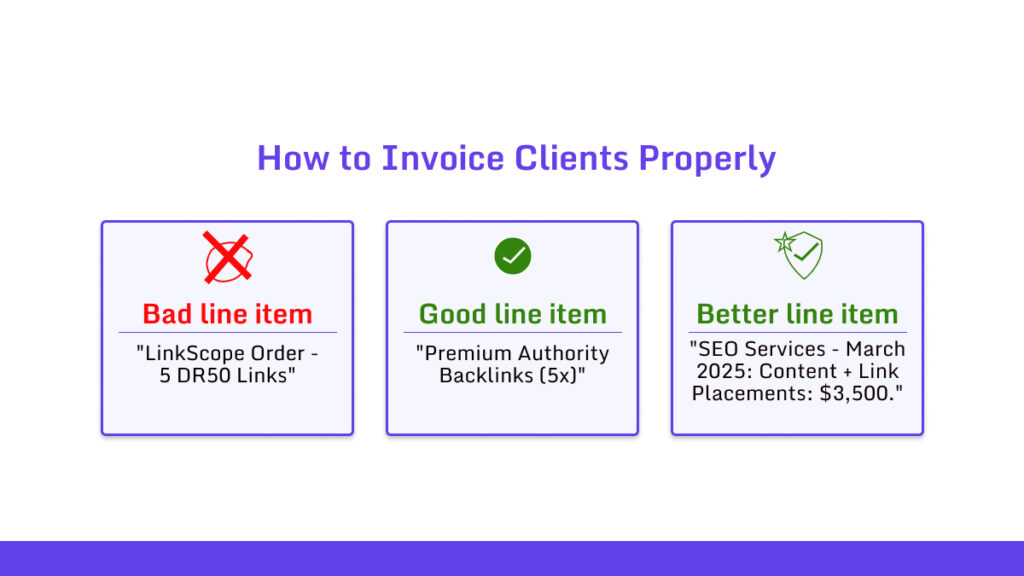
Bad line item: “LinkScope Order – 5 DR50 Links”
Good line item: “Premium Authority Backlinks (5x)”
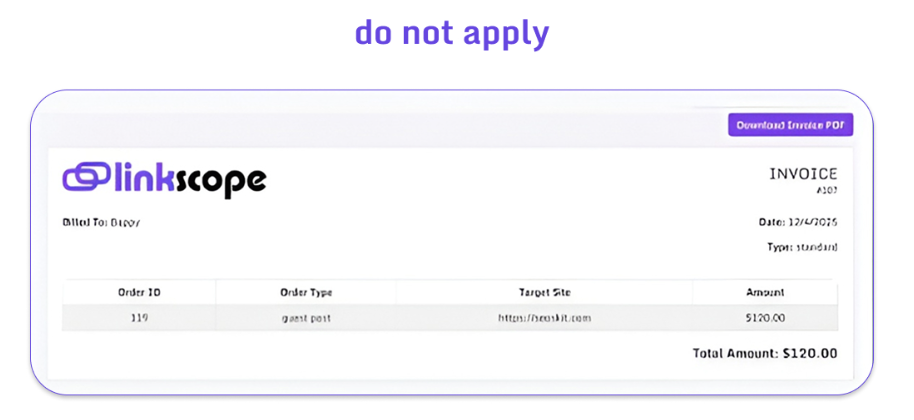
Better line item: “SEO Services – March 2025: Content + Link Placements: $3,500.”
Bundle link costs into a broader service category. Most agencies wrap links into their monthly SEO retainer. The client sees one number. They do not see the breakdown.
Never itemize per-link costs. The second you write “$200 per link” on an invoice, the client starts doing math. They search for alternatives. They find cheaper options.
Keep it bundled. Keep it clean. Keep your margin protected.
Step 6: Use Client Communication Scripts
Clients ask questions. Your answers protect your margin.
We have some scripts for you before you get into hassles.
When Client Asks: “Where do these links come from?”
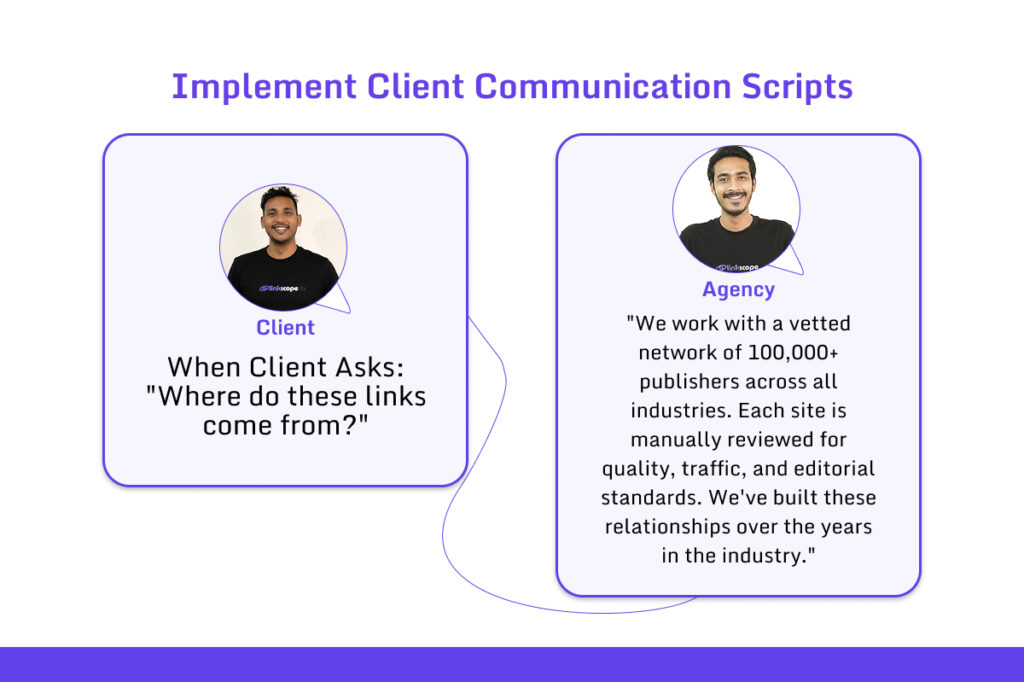
“We work with a vetted network of 100,000+ publishers across all industries. Each site is manually reviewed for quality, traffic, and editorial standards. We’ve built these relationships over the years in the industry.”
You are not lying. LinkScope is your network. You vetted them by choosing to work with LinkScope. The relationships exist.
When Client Asks: “Can I see the list before purchase?”
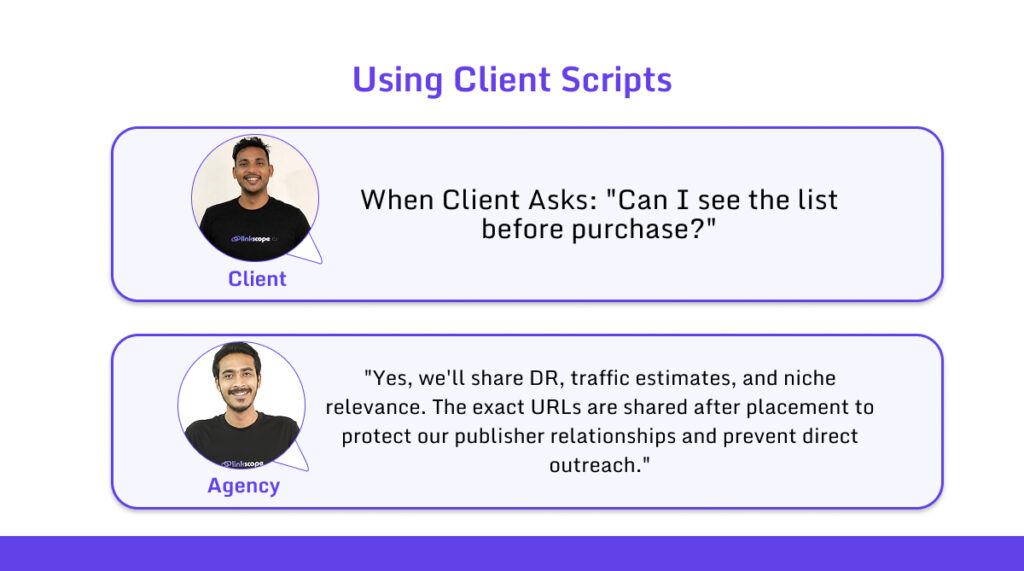
This is standard practice across the industry. You show metrics. You share URLs after delivery. Publishers stay protected.
When Client Asks: “Why did a link get deleted?”
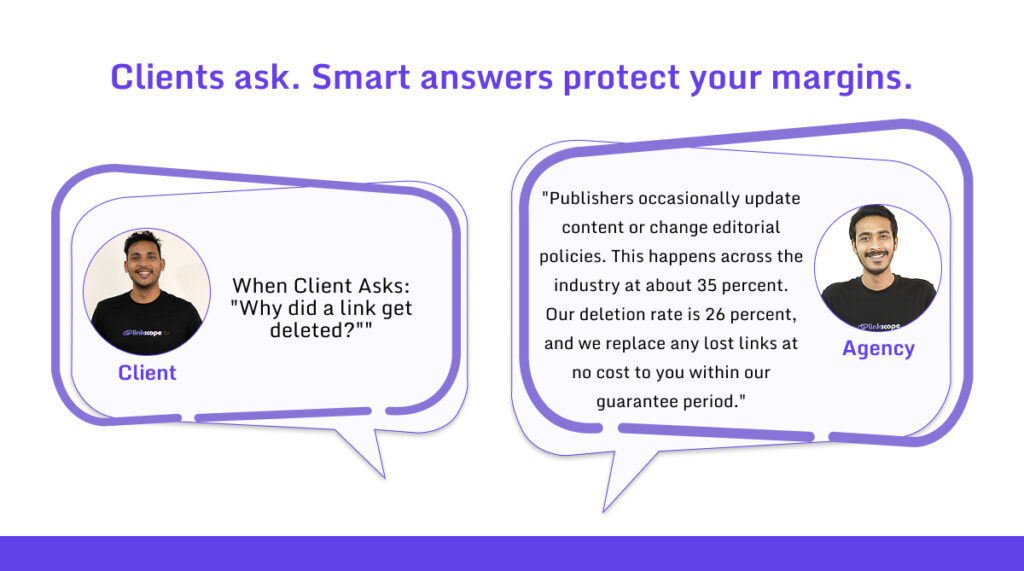
You frame deletions as normal. Your rate is better than average. You handle replacements. The client sees competence.
When Delivering Results
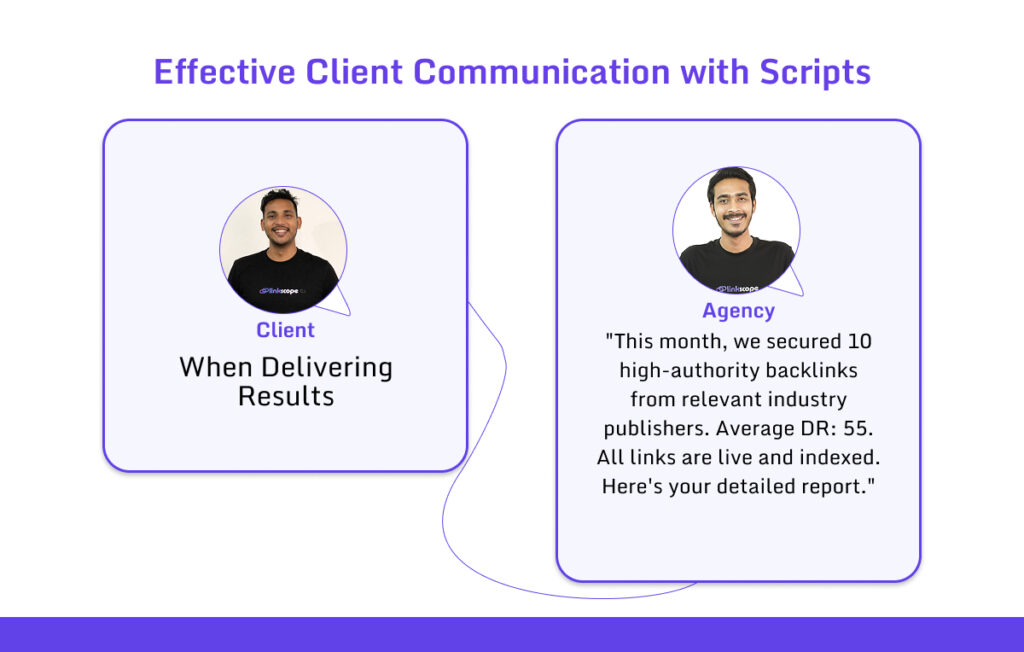
Attach your branded document. No mention of platforms. No mention of costs. Just results.
Step 7: Don’t Forget Quality Control
Your reputation is your process.
Bad links damage client trust faster than anything else. You need a system before you order and after delivery.
Pre-Order Checklist
Before you buy a link, check four things.
- ➜ Does the DR match what you promised the client? If you sold them DR50 links, do not order DR35.
- ➜ Is the niche relevant to their industry? A SaaS client does not need a link from a gardening blog.
- ➜ Is the site actually ranking and getting traffic? Open Ahrefs. Check organic traffic. If it shows zero, skip it.
- ➜ Would you be proud to show this link to the client? If the answer is no, do not order it.
Post-Delivery Checklist
When LinkScope delivers, verify everything yourself.
- ➜ Click the link. Make sure it is live.
- ➜ Check the anchor text. Confirm it matches what you specified.
- ➜ Confirm it is dofollow. Use a browser extension like NoFollow or check the source code.
- ➜ Take a screenshot. Save it in your records.
- ➜ Add the link to your client report.
Monthly Maintenance
Spot-check 10 percent of your links every month. Open them. Make sure they still exist.
If you find a deletion, request a refund from LinkScope immediately.
Replace the link for your client. Do it seamlessly.
Never mention the word refund to the client. Just say you refreshed the link as part of ongoing maintenance.
Scaling White-Label Operations
Your process changes as you grow.
At five clients, you can track everything manually. At fifteen, you need automation. At twenty-five, you need systems.
1-5 Clients: Manual Process
Track orders in a spreadsheet. One row per link. Columns for client name, URL, anchor text, DR, delivery date, and status.
Send reports monthly. Copy link details into your branded template. Email it to the client.
Check links manually. Click each one. Confirm it is live. Update your sheet.
This works. It does not scale.Common White-Label Mistakes to Avoid
Common White-Label Mistakes to Avoid

You get the notification. The link is live. You hit forward and send it to your client.
Now they see LinkScope branding. They know the platform name. They can Google it. They find the pricing.
Fix: Copy the link URL only. Paste it into your own branded report template. Send that. The client sees your brand. Nothing else.
Mistake 2: Letting clients log in to LinkScope “just to see.”
A client asks to browse the inventory. You think transparency builds trust. You give them guest access.
Bad move. They now know your source. They see the prices. Your margin is exposed.
Fix: Take screenshots of site metrics. Export them to PDF. Show DR, traffic, niche relevance. Give them the data without platform access. You control what they see.
Mistake 3: Using LinkScope in client screen shares
You are on a Zoom call. You share your screen to show link options. LinkScope is open in your browser.
The client sees the interface. They see the URL. They screenshot it.
Fix: Order links before client calls. Close the LinkScope tab. Show only the results in your tracking sheet or report. Never let the platform appear on screen during client meetings.
Mistake 4: Itemizing “LinkScope” on invoices
Your invoice line says “LinkScope order for March.” You think it is clear internal tracking.
The client reads it. They search for the name. They find your supplier.
Fix: Bundle link costs into broader service categories. Use “Link Placement Services,” or “Authority Backlink Package,” or “SEO Services – Monthly Retainer.” Never mention the platform name on any client-facing document.
Mistake 5: Telling the client your exact cost
A client asks what you pay for links. You think honesty builds trust. You tell them.
Now they know your margin. They question your pricing. They ask why the markup is so high.
Fix: Use value-based pricing language. Focus on results, not costs. If pressed, say “Our pricing reflects the quality of our publisher network, vetting process, and guarantee on link performance.” Never reveal your actual cost per link.
Get Into LinkScope.
Your clients will only see your agency name, reports, invoicing, and only Your brand.
You control the pricing. You keep the margin. They never question the source.
This setup takes half an hour at max. Follow the steps in this guide. Configure your account. Set up your templates. Write your scripts.
Book a 15-minute call
with our team.
We will walk you through account config, order, and everything
Get your account running today. Protect your margins from day one.